Tech 4 U
Making Technology Work for You

Making Technology Work for You
 https://brightspaceresources.ccc.edu/wp-content/uploads/2023/07/CCC_System_Logo_2C_RGB-300x48.png
0
0
brightspaceresources_22dd57
https://brightspaceresources.ccc.edu/wp-content/uploads/2023/07/CCC_System_Logo_2C_RGB-300x48.png
brightspaceresources_22dd572025-08-25 09:09:592025-08-25 09:15:59Use of TurnItIn Ends Soon. New Platform Forthcoming
https://brightspaceresources.ccc.edu/wp-content/uploads/2020/06/white-space.png
12
38
Elissa Tobin
https://brightspaceresources.ccc.edu/wp-content/uploads/2023/07/CCC_System_Logo_2C_RGB-300x48.png
Elissa Tobin2023-08-15 15:38:262023-08-15 15:55:01Fall 2023 – Start of Semester
https://brightspaceresources.ccc.edu/wp-content/uploads/2020/06/white-space.png
12
38
Elissa Tobin
https://brightspaceresources.ccc.edu/wp-content/uploads/2023/07/CCC_System_Logo_2C_RGB-300x48.png
Elissa Tobin2022-08-23 13:24:582022-08-23 13:43:11Fall 2022 – Start of Semester
https://brightspaceresources.ccc.edu/wp-content/uploads/2023/07/CCC_System_Logo_2C_RGB-300x48.png
0
0
brightspaceresources_22dd57
https://brightspaceresources.ccc.edu/wp-content/uploads/2023/07/CCC_System_Logo_2C_RGB-300x48.png
brightspaceresources_22dd572025-08-25 09:09:592025-08-25 09:15:59Use of TurnItIn Ends Soon. New Platform Forthcoming
https://brightspaceresources.ccc.edu/wp-content/uploads/2020/06/white-space.png
12
38
Elissa Tobin
https://brightspaceresources.ccc.edu/wp-content/uploads/2023/07/CCC_System_Logo_2C_RGB-300x48.png
Elissa Tobin2023-08-15 15:38:262023-08-15 15:55:01Fall 2023 – Start of Semester
https://brightspaceresources.ccc.edu/wp-content/uploads/2020/06/white-space.png
12
38
Elissa Tobin
https://brightspaceresources.ccc.edu/wp-content/uploads/2023/07/CCC_System_Logo_2C_RGB-300x48.png
Elissa Tobin2022-08-23 13:24:582022-08-23 13:43:11Fall 2022 – Start of SemesterYou must create a module (a content container or folder) before you can add topics (content or activity items). You can create sub-modules (modules within existing modules) to establish a deeper hierarchy. Once you create modules, you will populate them with topics. You can drag and drop files from your computer into a module, or you can select the Upload/Create button or Existing Activities buttons to create new topics or add existing course content to the module. A module is a storage place for a group of related course items (called topics)
You can use modules to organize your content by week/unit, or by types of activities:
Add a New Module
Add a File
Click Add
In Brightspace, your course availability to students is controlled by the course start and end dates listed in PeopleSoft CS9 (My.ccc.edu).
If you want your course to “open” or “close” on another date, you can manage that on the Course Offering Information page.
To Manage Course Availability and Dates

1. Enter your course and click Classlist

2. Near the top of the page, click Email Classlist.
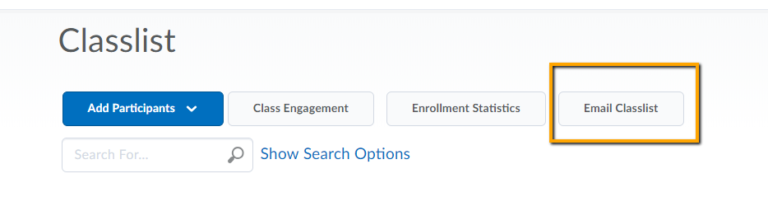
3. This will open a page displaying a list of all your students. Click on Send Email (at the very bottom) to begin composing your email.

4. A pop-up window will open, where you can compose your email. Note that students will automatically be populated in the bcc: field for privacy. Once you are satisfied with your email, click Send (at the top).


“I like how easy it is to embed videos and other content into Brightspace.”

“The Checklist and Awards tool, along with the Activity Feed, really improve class engagement. I noticed fewer withdrawals and higher levels of interaction and content engagement with Brightspace during the summer launch.”

“So far I find it very intuitive to use while setting up my courses for the semester and find it easy to navigate. I look forward to seeing how the students respond to using this new LMS. It should be easier for them to navigate as well.”

“Brightspace makes it much easier to upload documents and content, and to add to the ‘content.’”